When it comes to creating a yearbook, every detail matters. From heartfelt messages to captivating photographs, each element plays a crucial role in preserving memories for a lifetime. One often overlooked aspect, however, is the quality of images used. In the realm of printing, the term “DPI” holds significant importance. DPI, or Dots Per Inch, determines the quality and clarity of an image, and in the context of yearbook printing, 300 DPI is the gold standard.
What is DPI and Why Does it Matter?
DPI (dots per inch) refers to the number of dots a printer can squeeze into a linear inch of paper. In the world of high-quality printing, 300 DPI is the industry norm. DPI is calculated by taking the total number of pixels in an image or line and dividing that number by its physical length in inches on your page.
In this example, the low-resolution image on the left appears speckled with individual pixels and edges showing an jagged, stair-step aliasing effect, because there are less pixels available to spread over the image's physical area. The image on the right appears smooth and naturalistic, since pixels are more densely packed over the image's physical area.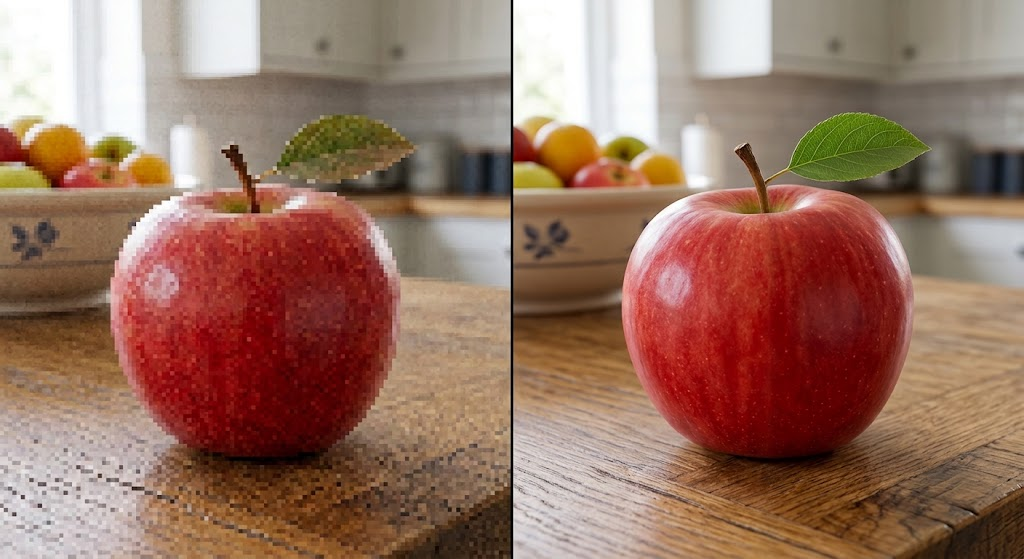
How can you be sure your images are "high res"?
By default, yearbook software generates image resolution warnings if an image is below an unacceptable threshold. If an image on your canvas is reporting a resolution issue, try reducing its size -- this may resolve the issue. Over-zoomed images can also produce resolution warnings.
Low resolution images can be avoided by safe sourcing.
- Avoid using external software tools to generate full-page or cover designs. Yearbook software is designed to help avoid resolution errors. If you choose to use Adobe tools, Canva or other software to generate layouts to pull into your yearbook software, be sure to read Using non-yearbook software to design your book in this knowledge base.
- Images and logos downloaded from your school's website may be down-sized on purpose to improve page loading times. If possible, track down the original files to use in your book.
- Do not download random images from the internet without reviewing their quality carefully.
- Do not use AI generated content -- you can usually not specific image resolution, and image size is often small.
- If artwork, business cards or photographs need to be scanned to a digital format, be sure to export them as a 300 dpi JPG image. Many scanners default to under 100 dpi, leading to serious quality issues.
- Photos taken on a mobile phone should be transferred directly from the phone, not shared as screenshots from the preview of the camera roll.
Target resolutions for commonly used images
Check image file details on your computer to see if image content is high resolution for its intended use.
Windows: Right-click the image file, select Properties, and click on the Details tab. Scroll down to the Image section to view the exact pixel dimensions under Dimensions (e.g., 1920 x 1080).
Mac: Select the image file in Finder, press Command + I (or right-click and select Get Info), and expand the More Info section. Look for Dimensions, which will display the pixel count.
| Single page background or featured front cover art | 2625 x 3375 pixels |
| Double page background or cover background | 6000 x 3900 pixels |
| Full cover design with text, feature images | Consult the Yearbook Pages & Cover Sizes article to the specs for your particular cover type and page count. |
| Clip art - embellishment size | 900 pixels on one dimension |
| Featured logos | 1250+ pixels on one dimension |
| Portrait images | 640 x 800 pixels |
| Scanned business card (sponsor ad) | 1050 x 600 pixels |
Was this article helpful?
That’s Great!
Thank you for your feedback
Sorry! We couldn't be helpful
Thank you for your feedback
Feedback sent
We appreciate your effort and will try to fix the article