Every portrait group includes a title over it to identify the group name. Portrait titles are styled directly on the portrait page, just like a regular text frame. Change font, size, color, shadow, alignment and other features by directly clicking on a title on the page. Unlike regular text frames, you can specify whether the change will apply to the selected text frame, to all titles on the page (for continual flow groups), or all titles in the entire portrait section.
Note that book checkout is not required to make styling changes. Customization of title size (on the page) and position is available in the portrait editor options.
| Styling may be copied from one frame, one page or one section to another via the toolbar over the selected portrait frame. On the page with the desired styling, click on any part of the portrait grid. Click on the menu icon (1) then click Copy Settings (2). Move to the new portrait page, applying the desired level of scoping (individual portrait, whole page, entire section). Click on the portrait grid, then the menu icon, and choose Apply Settings (3). | 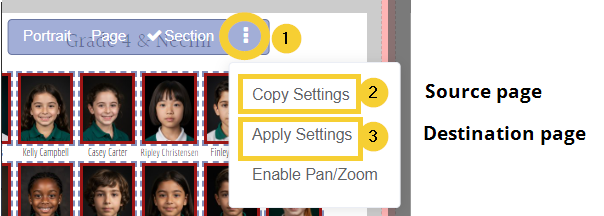 |
Customizing text contents in the portrait page title
The default text displayed on portrait group titles shows the name of the group flowed into the book. Click on the title frame to update the text in the individual title or the page.
| First, portraits are flowed into the book on the book ladder by choosing which groups to include. In this example, the combination of Grade:5 + Teacher names was selected. In your book, this may simply be a teacher or homeroom, a department or a grade. In the page editor, the portrait group displays the same text as the names of the groups flowed into the section. For example, if the section includes Grade: 5 and three different teachers, then each portrait page will show Grade 5 & the teacher's name. | 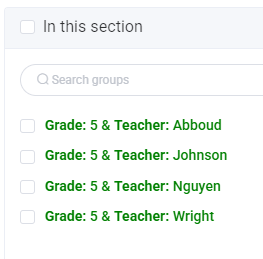 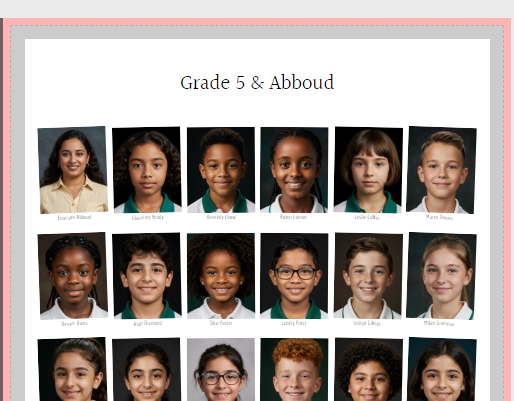 |
| To customize the title text, click on the text frame displaying the page title. For a single portrait flow within a section, choose Title or Page to update the text. For a section that contains multiple groups, choose Title. This will focus the changes to this frame alone, with no changes being made to any of the other titles in the section. | 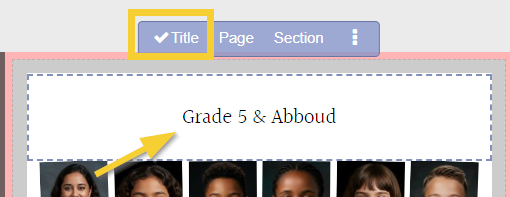 | ||
| Click on the Text editor button in the top menu. The current title text is displayed in the editor. | 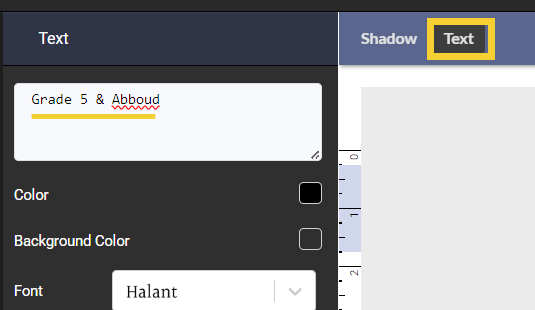 | ||
| Update the text as desired. The title will update on the page immediately. | 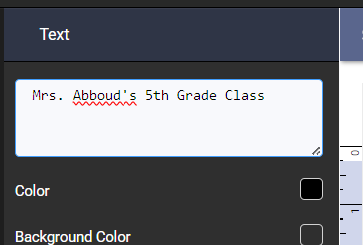 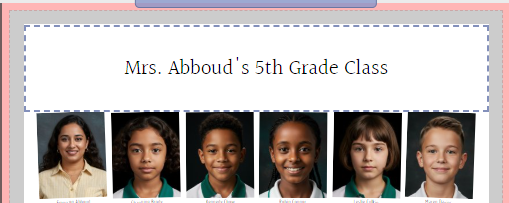 | ||
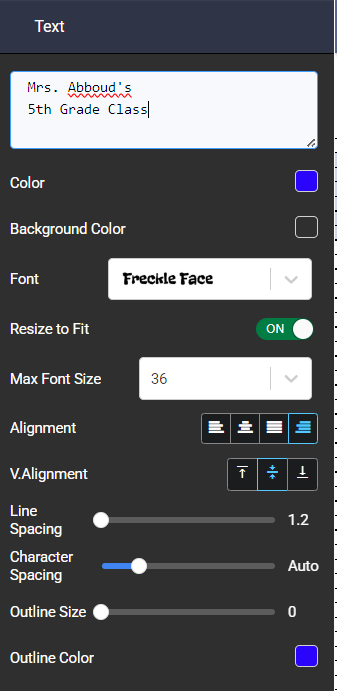
| Additional text styling may also be done to customize the color, background color, font, alignment, spacing and outlining, and/or choose the Shadow menu. Other groups/pages within the section will not update. |
|
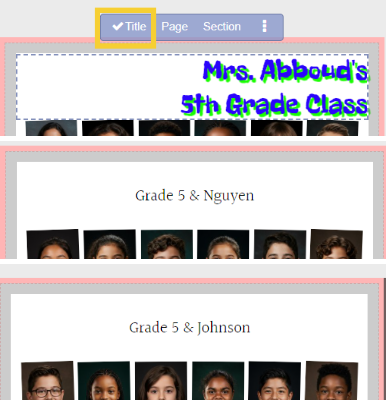
Customizing title text by page or section
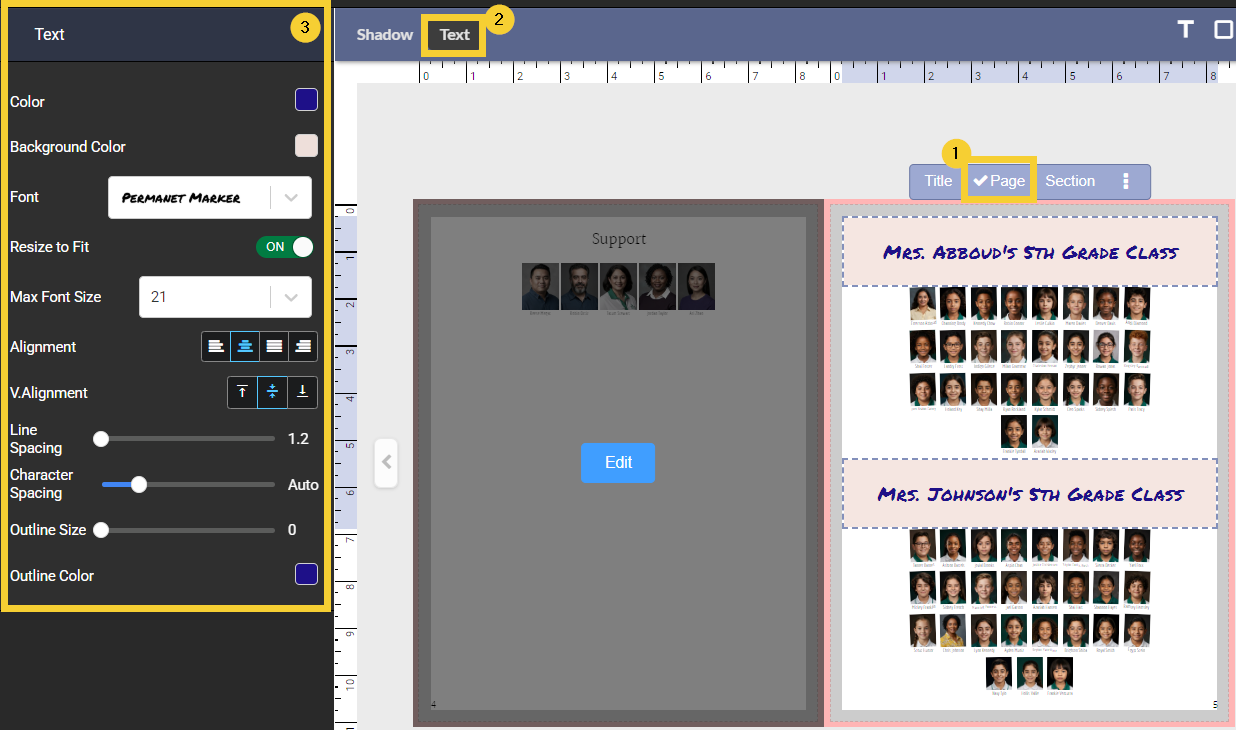
To apply the same styling options to all titles on a single page, select one title then choose Page. Note this will only work for a portrait section where page breaks are off between the groups.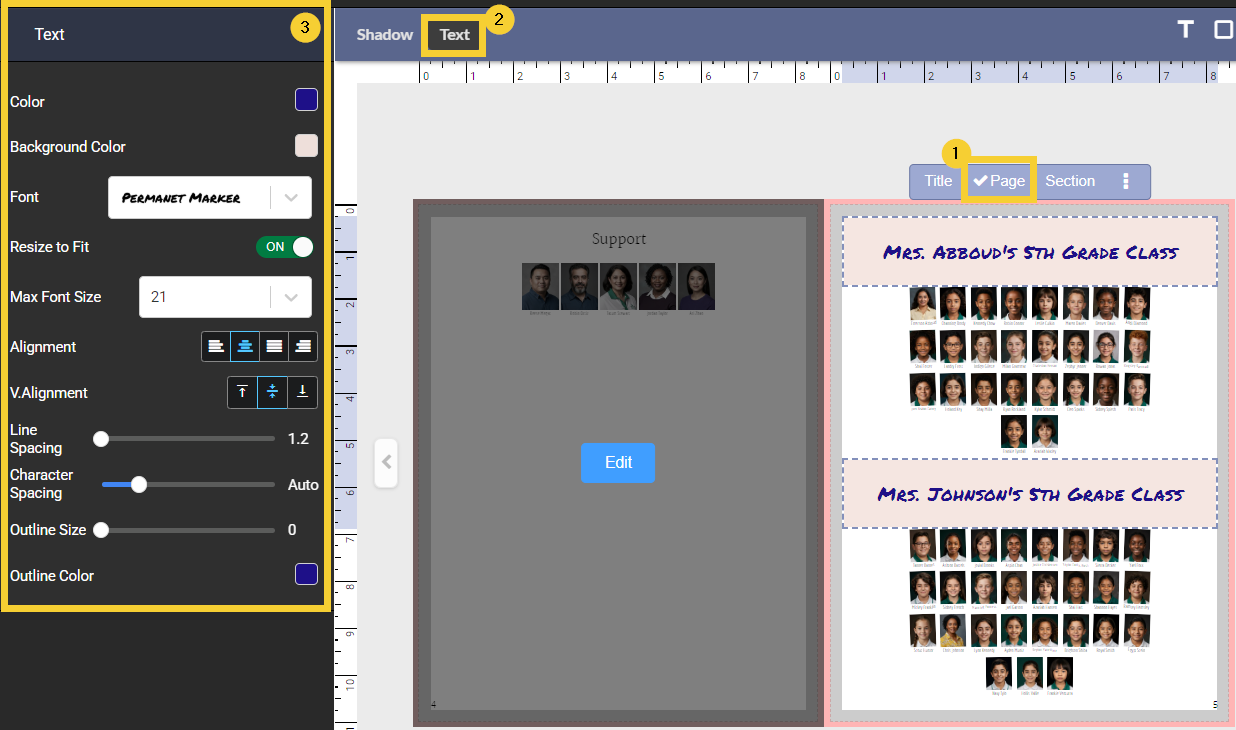
To apply the same styling options to all titles within a section, select one title then choose Section. Select Text or Shadow options, then make changes in the editor. The changes will apply to all pages in the section immediately.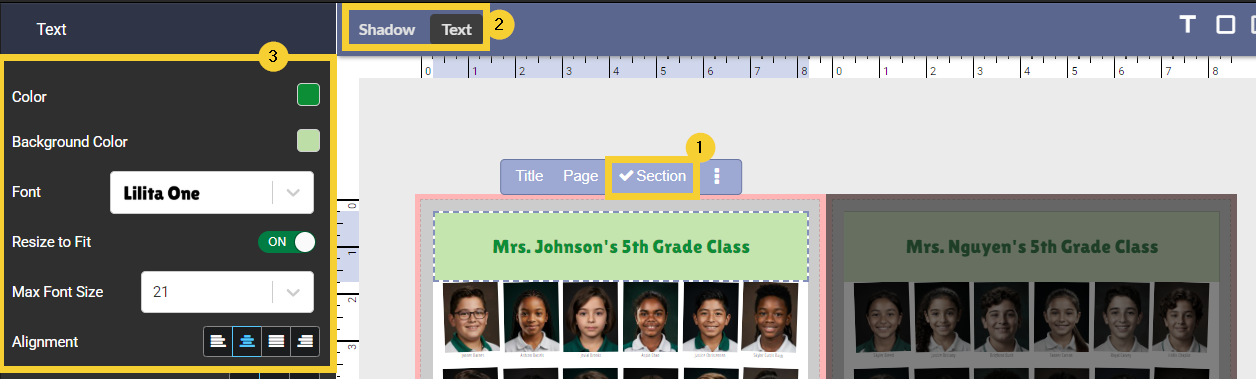
Title height/sizePage title size is changed in the Portraits tab. To change the amount of space allotted for the title, click on the Portraits tab then check out the book. | 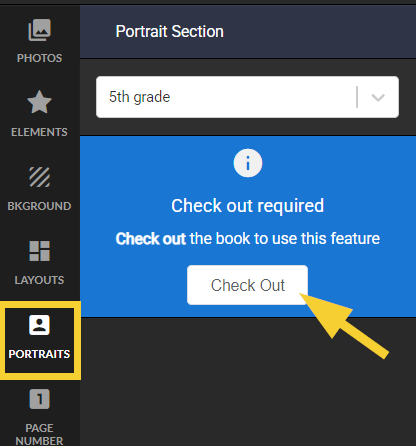 |
| Access the Advanced tab, then open the Title Options drawer. Set the Page Title Height to the desired size (in inches). Note this is the height of the entire title frame. Text size is controlled directly in the text editor. Below: an example of the title height set to 0.75" and 1.50". Note that background fill will cover the entire title frame. 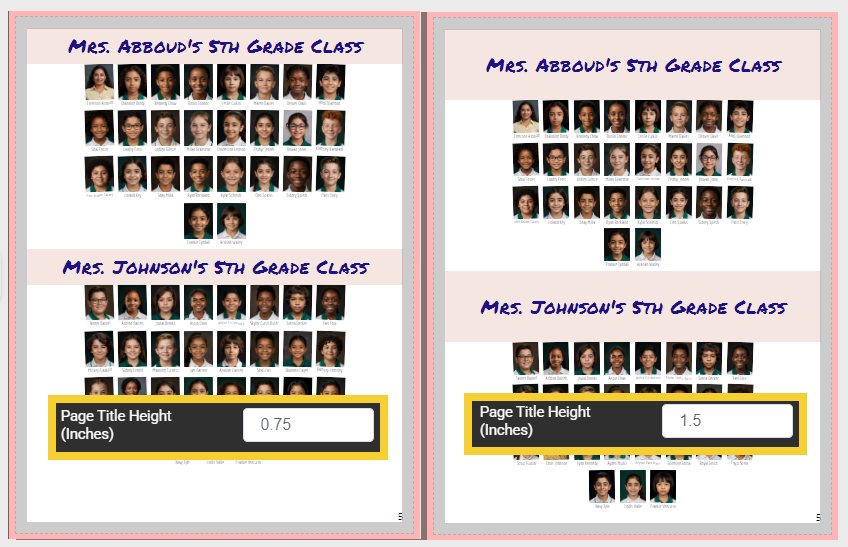 | 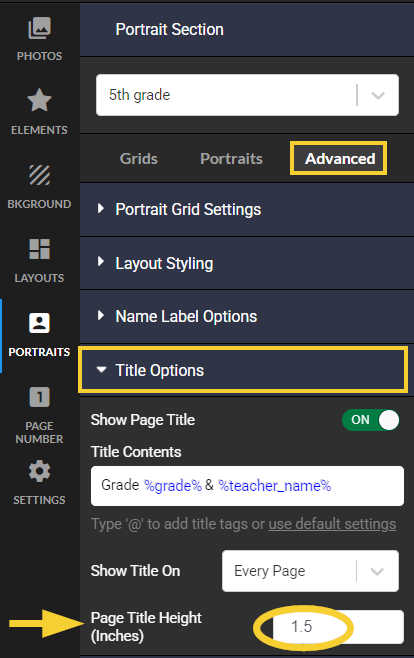 |
Advanced OptionsNote that the Advanced Title Options also includes the ability to turn portrait titling off, the default text show in on the title (the group name flown into the book), and the ability to specify where the page titles should show.Details on these features are available in the Advanced Title article. | 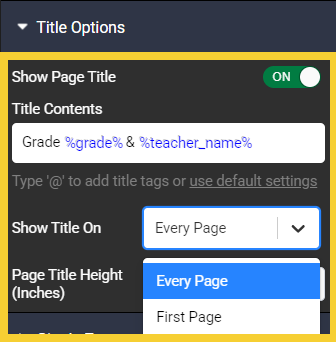 |
Was this article helpful?
That’s Great!
Thank you for your feedback
Sorry! We couldn't be helpful
Thank you for your feedback
Feedback sent
We appreciate your effort and will try to fix the article