To make corrections to your book, first rejected your proof on the Studio Source Dashboard. This will unlock Memento.
When you return to Memento, you will find that each page is approved, identified by an orange circle at the top. To make corrections, reject pages individually, by section, or for the entire book, depending on your needs. If you need to make changes to a portrait page, be sure to reject the entire section.
| To reject a single page, hover over it to access the page menu icon (upper right), then choose Reject page. | 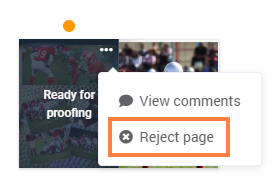 |
Reject all pages within a section: click on the menu icon in the far right of the section bar, then choose Reject all pages. | 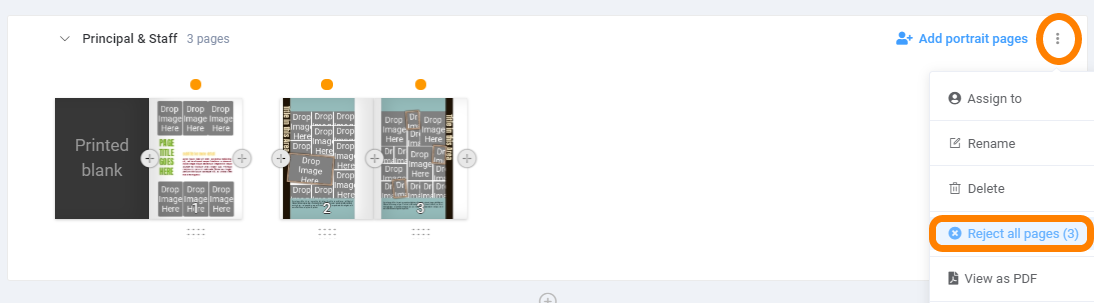 |
Reject all pages in the entire book: access the book menu icon at the bottom of the book manager page. Choose Reject all pages. |  |
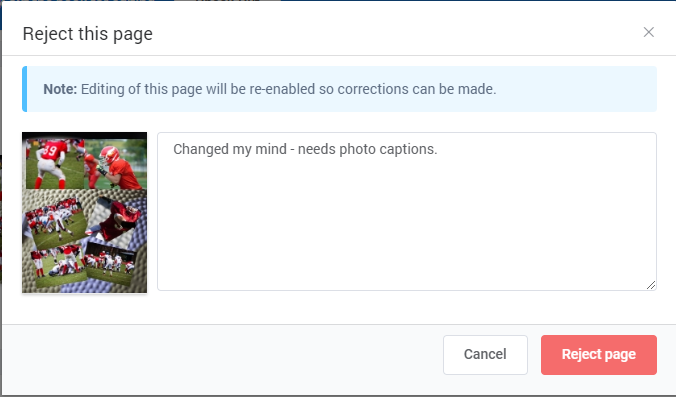
Comments are required to reject the page, so that the team member editing it can know how to fix it. Add some instructions then complete the rejection process.
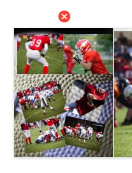
Once rejected, the page indicator will display a red X. The page is editable again, ready for corrections and to be resubmitted.
Was this article helpful?
That’s Great!
Thank you for your feedback
Sorry! We couldn't be helpful
Thank you for your feedback
Feedback sent
We appreciate your effort and will try to fix the article