Portraits are added to your book directly on the ladder. Portraits are not applied to pages on the ladder.
Do not create pages for portraits in advance - portrait grids will auto-generate on new pages to make sure that everyone in the specified group(s) appears in the book.
After the initial flow, you can customize the portrait grids to condense to fewer pages or expand them to cover more, as well as change every design aspect about the page.
If changes are required for groups to include or the order of the pages, reflow them on the ladder. Note that customized pages will retain their decorations and styling if the selected groups are simply reordered, not replaced with a different group.
It is strongly recommended to create one section per grade plus a staff section, then flow portraits into each section separately. This allows you to customize each grade separately to accommodate the number of students per class, turn off page breaks for very small pre-k am/pm groups, and create special portrait grids for staff and the senior class.
Adding a portrait flow to your book
| Step 1: Create a section for your portrait flow. We recommend creating one section per grade, plus a section for staff. Do not add pages for the portraits. They will auto-generate pages when you add a flow to the section. | 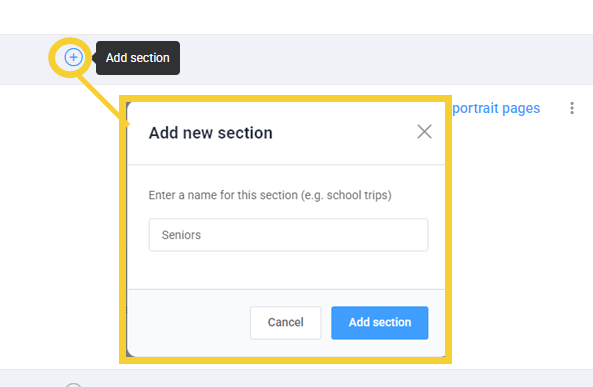 |
| Step 2: Check out the book. Adding portrait pages will cause structural changes to your book, so no one can be actively editing it. |  |
| Step 3: Click Add portrait pages. |  |
| Step 4a: Specify which group(s) should be added to the current section. Use the filter to specify which groups you are looking for, or search the on the left side of the page. The filter shows groups defined by grade, teacher, homeroom and department, sometimes grouped as combos. For example, flow an entire grade (eg. Grade:8), or a series of classroom groups one after another (eg: Grade:8 & Teacher:Arthur, Grade:8 &Teacher:Flynn, Grade 8 & Teacher:Smythe). Groups are defined in the portrait manager. Grade, Teacher, Homeroom, Department and Role are used to flow portraits. | 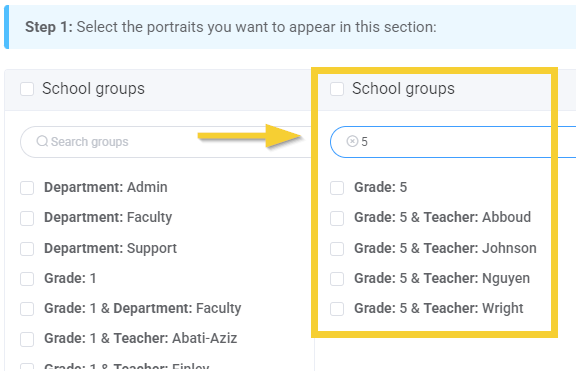 |
| Checkmark the selected group(s), then use the arrow to move them to the right-side column. Click Next step when done. | 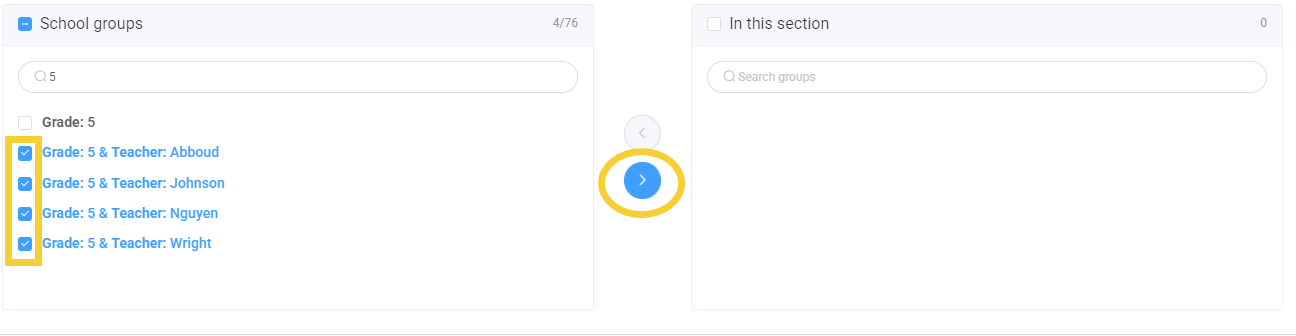 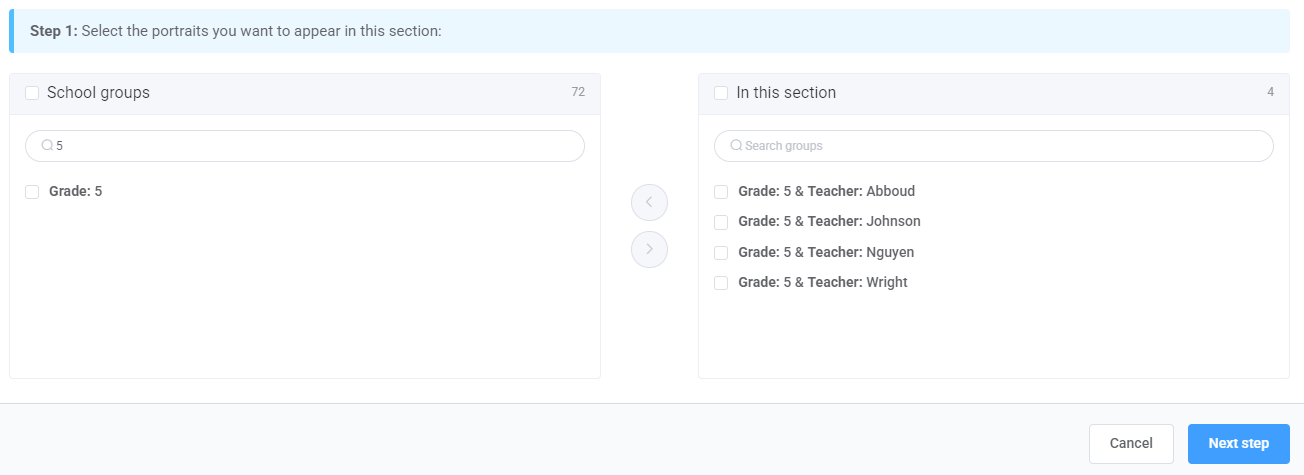 |
| Step 4b: (Optional) Specify which group(s) should be added to the current section. If desired, reorder the groups. Click down and drag them into a new order. Click Next step when done. | 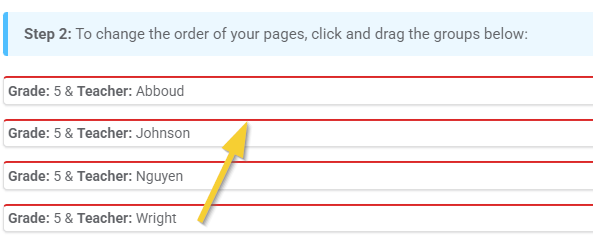 |
| Click Add to book if the arrangement of groups is correct. If changes are needed, click on Previous step to make changes. | 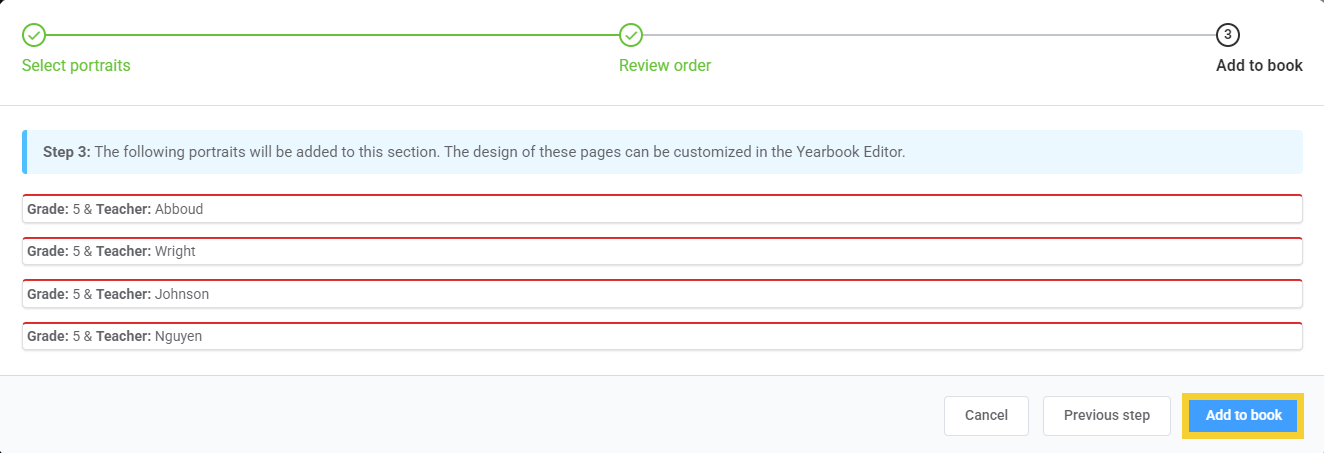 |
| Step 5 (Optional): Launch the pages in the editor to customize them. If you want to immediately work on the portrait page customization, choose yes. Otherwise, choose No, I'll do this later to continue working on the ladder. |  |
Results: a basic portrait flow appears in the section, ready to edit!
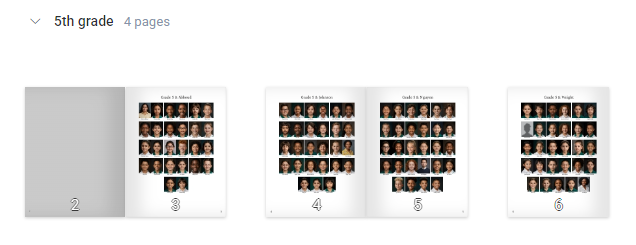
Reflowing portrait groups
If changes are required to the group order or the groups included within a section, simply return to the book ladder to the section to repeat the steps above. The only difference is that the groups will be preselected from the previous flow.
| Click on Edit Portrait Pages in the section you need to change. |  |
| To remove a group from a flow, checkmark it then use the arrow to move it back to the left side column. Click Next Step. If the groups simply need to be reordered, click Next Step. | 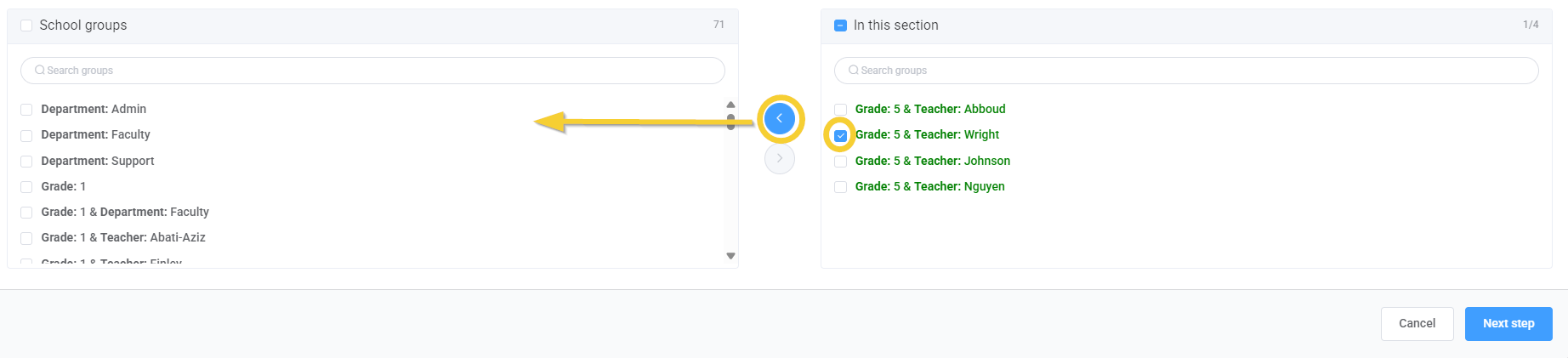 |
| In Step 2, change the order of the groups by dragging the groups into a new order. Click Next Step when the order is reset. | 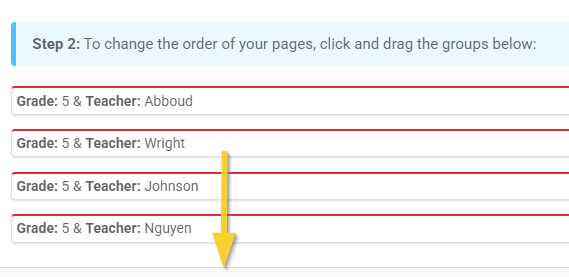 |
| Move through the remaining portrait wizard steps. The portrait groups will be reset as desired. | What to expect:
|
Was this article helpful?
That’s Great!
Thank you for your feedback
Sorry! We couldn't be helpful
Thank you for your feedback
Feedback sent
We appreciate your effort and will try to fix the article